

My new employer’s HR asked for my PhilHealth MDR during onboarding in 2024. I had my PhilHealth number already, so I figured it would take two minutes. It didn’t.
The first problem was landing on the wrong page. Old PhilHealth links still show up on Google, and two of them led me to a page that either wouldn’t load or kept rejecting my password. The second problem was that my portal account didn’t exist yet, even though my PhilHealth membership did. I still had to register and wait for an activation email before I could access anything.
Once I finally got in, the MDR wasn’t on the dashboard. I had to click into the member profile section first. That one step, which no guide mentioned, would have saved me 20 minutes. This walkthrough covers all of it: portal registration, where the MDR download is, the difference between the MDR and eSOA, and what to do if your MDR has wrong details on it.
What is a PhilHealth MDR?
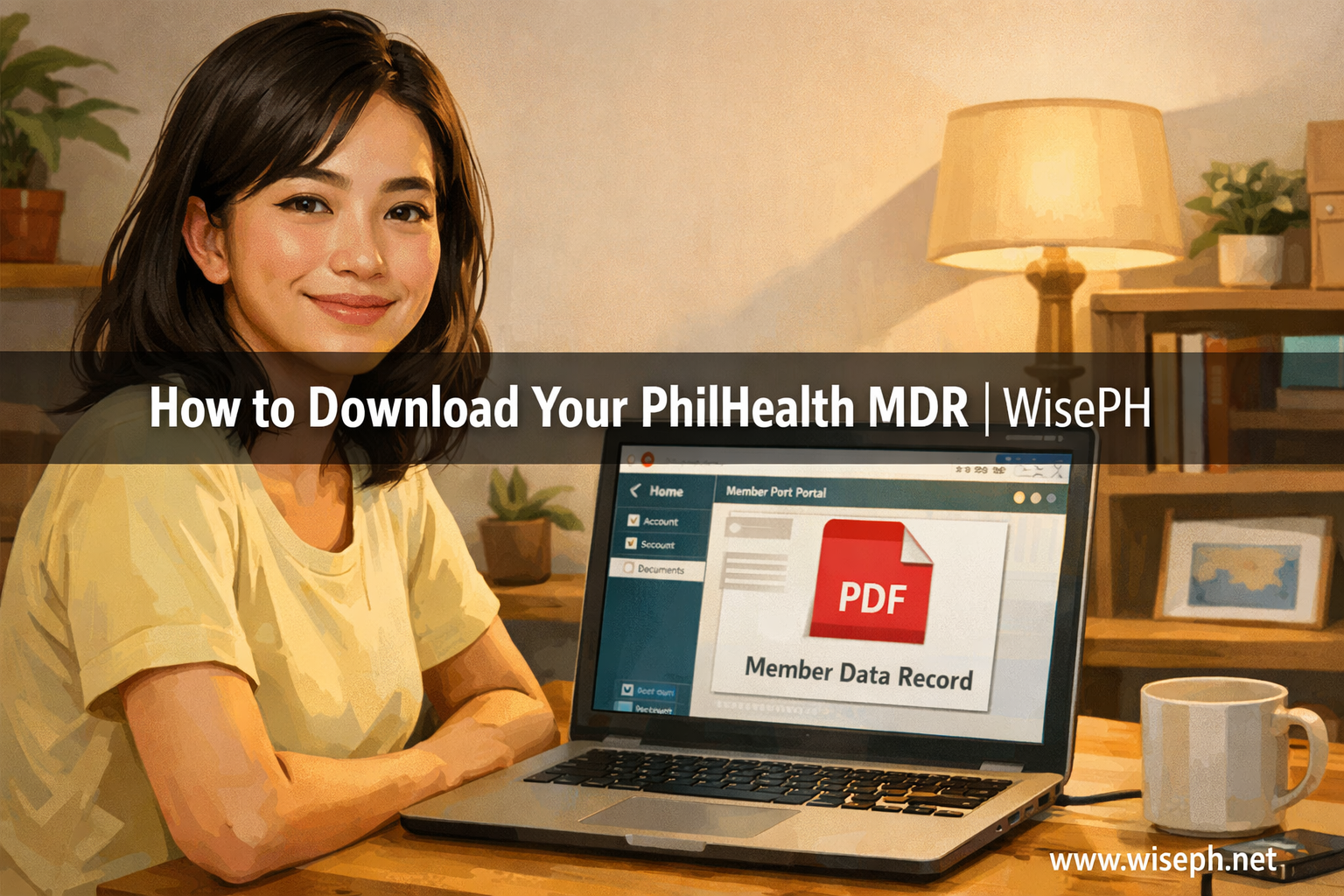
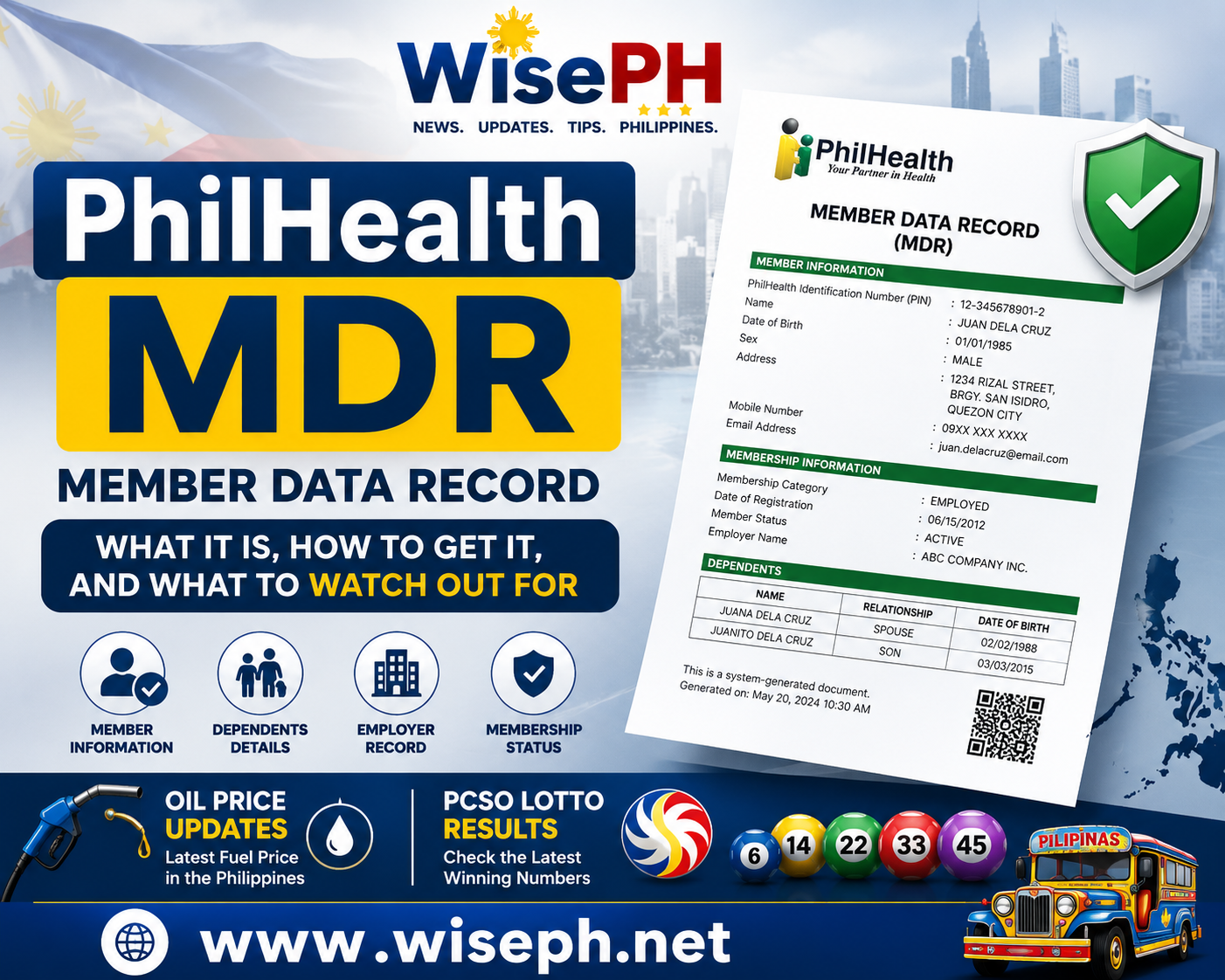
The MDR (Member Data Record) is a one-page PDF you download from the PhilHealth Member Portal. It shows your PhilHealth Identification Number (PIN), full name, birthdate, sex, address, contact details, membership category, employer on record, and enrolled dependents.
HR departments ask for it because it confirms your PhilHealth membership at a glance. In most cases, a clean printed or digital copy is accepted as-is, with no stamp or signature required.
If you have family members enrolled as qualified PhilHealth dependents, their names appear on your MDR as well. Everything is on one page.
MDR vs eSOA: which one does your employer actually want?
These two documents are not interchangeable. A colleague submitted an eSOA when her HR asked for an MDR. They sent her back to download the correct file. It happens constantly because both come from the same portal.
The MDR is your membership profile. It answers: who are you, what is your PhilHealth number, and what is your membership category? In contrast, the eSOA is your payment record. It answers: how much was paid, when was it posted, and did your employer remit on time?
For employment onboarding, the document HR wants is the MDR. The eSOA becomes relevant when you are checking for missing contributions or filing a correction. Specifically, if you need to verify that last month’s payment posted correctly, the eSOA is what you pull.
| Document | What it shows | When to use it |
|---|---|---|
| MDR | PhilHealth PIN, personal details, membership category, employer, dependents | Employment onboarding, proof of enrollment |
| eSOA | Contribution history, posted payments, employer remittances | Verifying remittances, filing correction requests |
For a walkthrough on checking contribution history and downloading your eSOA, see how to check your PhilHealth contributions online.
How to register on the PhilHealth Member Portal
Having a PhilHealth number does not mean your portal account already exists. You need to register separately before you can download anything. Most guides skip this step entirely, and that is exactly where people lose time.
Go to memberinquiry.philhealth.gov.ph/member and click Register. For a screen-by-screen walkthrough of every field, the PhilHealth online registration guide covers each step in detail.
Three things that cause problems during sign-up:
- Your details must match PhilHealth’s records exactly. Even a wrong birthdate format or a missing middle name blocks registration.
- Do not use an email address already linked to a previous PhilHealth account attempt. Old attempts cause conflicts that prevent the activation email from arriving.
- The activation email takes 5 to 15 minutes. If you don’t see it, check Spam and Promotions before assuming the registration failed.
The MDR download option does not appear on an unactivated account. Click the activation link in the email first, then log in. There is nothing to download until that step is done.
How to download and print your PhilHealth MDR
Logged in but can’t find the MDR? You are looking in the wrong place. The main dashboard after login does not have a download button. That threw me off the first time.
Navigate to the Member Profile section from the navigation menu. That is where the MDR download option lives, inside your profile page, not on the landing screen. Once you open it, you’ll see a download or print option for the MDR.
- Log in at memberinquiry.philhealth.gov.ph/member.
- Go to Member Profile from the navigation menu.
- Review your details on the screen: name, PIN, membership category, employer, dependents.
- Find the MDR download or print option within the profile section.
- Save the PDF to your device or print directly from your browser.
The portal generates a clean, ready-to-submit PDF. Before saving, check that your name, PhilHealth PIN, and employer details are correct. Most HR offices accept the plain download as-is, with no stamp or signature needed. Print on white paper, make sure the text is legible, and you’re done.
Common errors and how to fix them
Three issues come up most often when members access the portal for the first time.
Wrong portal URL. Old PhilHealth pages still appear on Google search results. If a page won’t load or keeps rejecting your password, you may be on a legacy address. The correct portal is memberinquiry.philhealth.gov.ph/member. Bookmark it directly so you return to the right page every time.
Login mismatch. Your registration details must match PhilHealth’s records exactly. A different spelling of your middle name, a wrong birthdate, or a missing name suffix will block you. In particular, if your name on the portal doesn’t match your PhilHealth card, the system rejects it. Check against your original PhilHealth documents before trying again.
Portal downtime. I reset my password once because I assumed the problem was on my end. It wasn’t. The PhilHealth server gets overloaded, particularly on weekday mornings and after pay periods. If the page times out and your internet works fine on other sites, wait 30 minutes and try again before touching your password or account settings.
What if your MDR shows wrong information?
The portal does not let you edit your MDR. It is read-only: you can view and download, nothing else. To correct wrong details, you go through a separate amendment process.
Fill out the PMRF (PhilHealth Member Registration Form), mark it “FOR UPDATING,” attach supporting documents for the correction you’re making, and submit to the nearest PhilHealth office. Some Regional Offices also accept submissions by email, depending on the type of correction. After PhilHealth processes the update, the corrected MDR becomes available on the portal.
For more on membership categories and related documentation requirements, the guide on PhilHealth rules for self-employed, voluntary, and senior members has the full breakdown by member type.
Can OFWs download their MDR from abroad?
Yes. The PhilHealth Member Portal works from any device with an internet connection, anywhere in the world. There is no separate OFW process for the MDR. The same portal, the same login, the same steps as any member in the Philippines.
The only requirement is that your portal account is already registered and activated. If it isn’t, complete the registration first using the steps above. After activation, the MDR is accessible remotely at any time. Similarly, OFWs checking their enrolled dependents can view that information on the same MDR without needing to be in the country.
For correcting wrong MDR details while abroad, the PMRF amendment still applies. Some PhilHealth Regional Offices accept submissions by email, which makes it workable without a branch visit. Check the website of your relevant regional office for the accepted submission method.
Frequently asked questions
What is the PhilHealth MDR used for?
The MDR (Member Data Record) proves your PhilHealth membership. HR offices ask for it during employment onboarding to confirm your PhilHealth number and registered personal details. It is a one-page PDF you download directly from the PhilHealth Member Portal.
Is the PhilHealth MDR the same as the eSOA?
No. The MDR shows your membership profile: PhilHealth number, personal information, employer on record, and dependents. The eSOA shows your contribution history and payment records. HR usually wants the MDR for enrollment proof. The eSOA is for verifying payments or filing correction requests.
How long does the PhilHealth portal activation email take?
Usually 5 to 15 minutes. If you don’t see it, check Spam and Promotions first. During peak server times, delays can be longer. If the email hasn’t arrived after 30 minutes, try registering again with a different email address.
Does the printed PhilHealth MDR need a stamp or signature?
In most cases, no. Most HR offices and government agencies accept the clean PDF download as-is. A clear print on plain white paper is sufficient. If a specific agency requires a certified copy, visit a PhilHealth office for a stamped version.
What if my PhilHealth MDR shows the wrong employer?
You cannot change it through the portal. Fill out the PMRF, mark it “FOR UPDATING,” attach proof of your current employment, and submit it to the nearest PhilHealth Local Health Insurance Office (LHIO) or by email to your regional office. The MDR updates once PhilHealth processes the amendment.
Browse the complete PhilHealth guides on WisePH for step-by-step help on contributions, claims, eligibility, and benefits.
Once your PhilHealth records are in order, a solid next step is building long-term savings. The Pag-IBIG MP2 savings account earns tax-free dividends and is open to any Pag-IBIG member, including self-employed and OFW contributors.