

Checking your PhilHealth contributions online takes about two minutes once you know the system. Most guides make it sound even simpler: log in, click one button, done. The problem is that the first time you see a blank row in your contribution history, that two-minute check turns into a 30-minute panic spiral.
This guide covers the full process: from creating your portal account (the step every other tutorial skips) to what “Posted” actually means, what to do when you spot a gap, and how to recover your PIN without leaving your house.
What you need before you log in
You need two things to check your PhilHealth contributions online: your 12-digit PhilHealth Identification Number (PIN) and a registered portal account. That’s it. No other documents, no office visit.
Most people already have a PIN; it’s printed on your Member Data Record (MDR), old payslip, or company ID. If you can’t find it, skip to the PIN recovery section below. The portal account is something you create once, and it’s good forever.
| Requirement | Where to get it |
|---|---|
| 12-digit PhilHealth PIN | Payslip, MDR printout, or HR records |
| Portal account | Create at memberinquiry.philhealth.gov.ph/member |
| Valid email address | Required for account activation |
| Desktop Chrome (recommended) | Mobile browser works but is unreliable |
How to create your PhilHealth portal account
This is the step 90% of tutorials skip entirely. Even if you’ve been paying PhilHealth for years through your employer, you still don’t automatically have a portal login. You have to create one first.
For a full walkthrough of the registration process, see our guide on how to register for PhilHealth online. Here’s the quick version:
- Go to memberinquiry.philhealth.gov.ph/member
- Click Create Account (not the “PhilHealth Member Registration” link, which is only for people who don’t have a PIN yet)
- Enter your 12-digit PIN
- Fill in your Last Name, First Name, Date of Birth, and Sex; these must match PhilHealth’s records exactly, no nicknames, no abbreviations
- Enter a valid email address (each email can only be used once)
- Create a password: 8 to 32 characters, with at least one uppercase letter, one lowercase letter, one number, and one special character
- Pass the CAPTCHA and submit
Check your email immediately after submitting. The activation link expires in roughly 15 to 30 minutes, not 24 hours as the system implies. If you miss it, you have to start the process over. Check your spam folder first.
If you get a “Member information does not exist” error even though your PIN is correct, your records may not be fully synced yet. Wait two days and try again. This happens most often after a recent job switch, name change, or address update.
How to check your PhilHealth contributions online
Once your account is active, here’s the exact flow for checking your PhilHealth contributions online:
- Go to memberinquiry.philhealth.gov.ph/member
- Log in with your registered email and password
- On the dashboard, click Premium Contributions or Contribution History
- Your monthly records appear in a table; each row shows the contribution period, amount, and the date it was posted
- Download your eSOA (Electronic Statement of Account) as a PDF while you’re still logged in
If the CAPTCHA keeps failing or the page throws a generic error, try desktop Chrome first and clear your browser cache. The portal runs poorly on mobile browsers and tends to glitch during peak hours, specifically end of month and payday week. On those days, the server gets overloaded and the CAPTCHA fails even when you type it correctly.
For a breakdown of everything inside the portal after you log in, read our full guide on how to access your PhilHealth online account.
What “Posted” means, and why gaps are normal
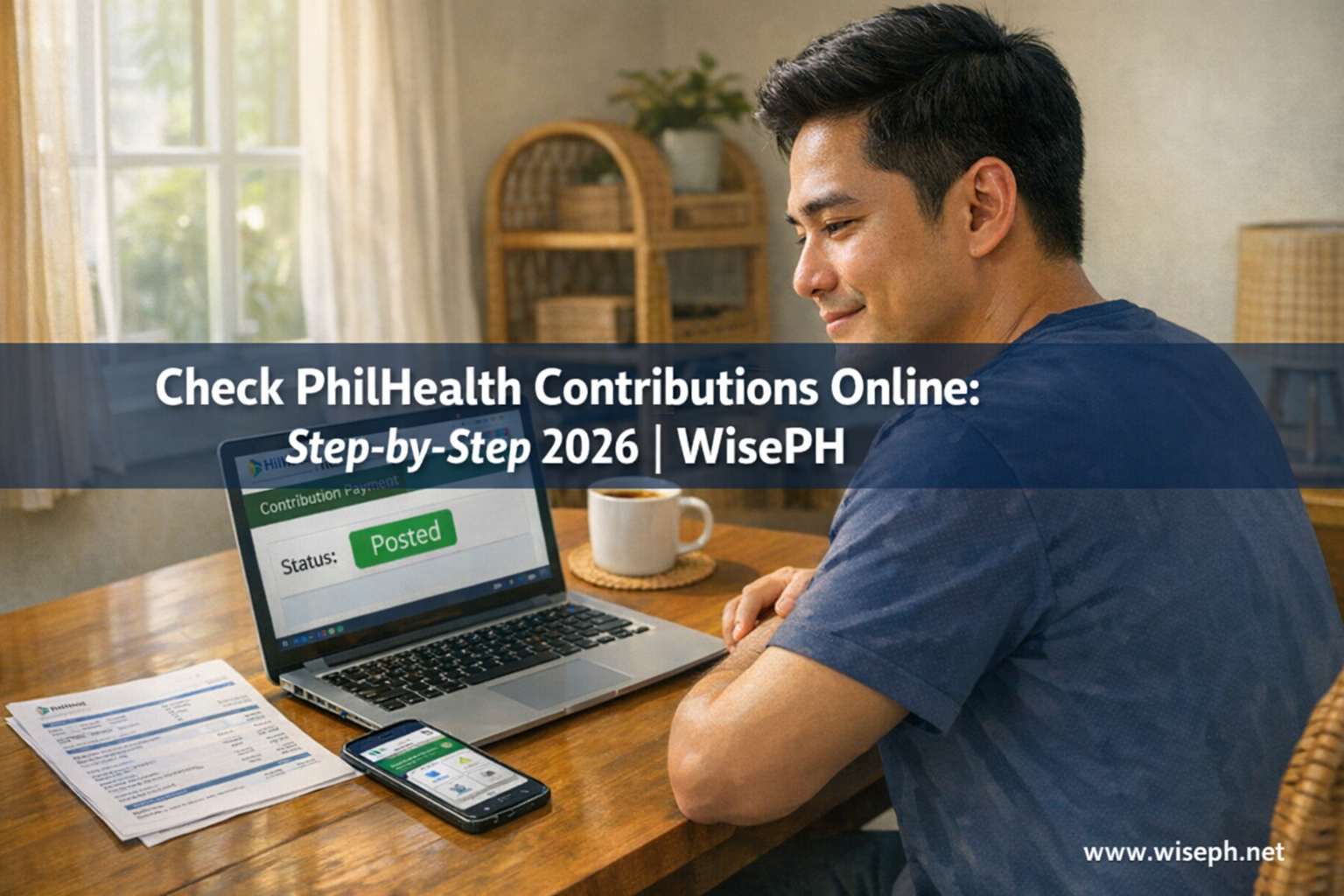
“Posted” means PhilHealth has officially received, reconciled, and recorded your payment in their system. It does not mean you just paid. Payment is step one. Posting can take much longer, and that delay is where most of the confusion comes from.
Every guide throws around “Posted” as if it updates the same day you pay. It doesn’t. Here’s the realistic timeline based on membership type:
| Membership type | Typical posting time |
|---|---|
| Employed (via employer remittance) | 30 to 60 days after salary deduction |
| Voluntary / self-employed | 7 to 21 days after payment |
| OFW (via SPA/PRN) | 7 to 21 days; longer if paid through a remittance partner without an SPA |
I check my own contributions every quarter, and there are almost always one or two blank rows for the most recent months. The first time I called PhilHealth about it, the rep just laughed and said, “Normal yan, wait lang po.” That is the honest answer no guide ever gives you.
For employed members, specifically, the gap usually comes from your company being late on their RF-1 submission. That’s not your fault, but it can still affect your claims if it stays unresolved. Don’t ignore it past two weeks.
How to download your eSOA as proof
Download your eSOA every single time you check. Don’t just take a screenshot. Screenshots are unverified; the eSOA PDF carries an official date stamp that PhilHealth offices, hospitals, and loan processors actually accept as proof.
Here’s how to get it:
- Log in to the portal at memberinquiry.philhealth.gov.ph/member
- Go to Premium Contributions or Member Statistics
- Click the Download eSOA or Export Contribution History button
- Save the PDF with the date in the filename (for example: eSOA_April2026.pdf)
Keep a folder of these files. When you need them for a hospital admission, maternity benefit claim, or loan application, you’ll have them ready. I watched a cousin lose her maternity benefit because she had no proof and the gap from her previous company was still unposted. The hospital couldn’t wait for PhilHealth to reconcile it. Downloading the eSOA each time would have saved her weeks of back-and-forth.
What to do when you spot a missing contribution
The moment you see a blank row, download your eSOA and gather your payment proofs. Do not wait and hope it posts on its own. Acting fast is often the difference between a quick correction and a denied claim.
What to do next depends on your membership type:
| Your membership type | First action |
|---|---|
| Employed | Send your eSOA and payslip to HR immediately; ask them to check and correct their RF-1 submission |
| Self-employed / voluntary | Log in, go to Member Services, and file a “Request for Contribution Posting Verification” |
| OFW | Bring your SPA/PRN reference number and payment receipt to your nearest PhilHealth LHIO, or email members.inquiry@philhealth.gov.ph |
One important note for self-employed and OFW members: if your membership type in the system still shows “Employed,” the Payment Management module (where you generate your SPA/PRN) won’t appear at all. Update your membership type first, either inside the portal or at your local PhilHealth office, before trying to generate a payment reference.
An OFW I know paid his annual premium through a Dubai remittance partner but didn’t generate the SPA first. It took almost two months to post, and he nearly got denied a claim because of the gap. The fix would have taken five minutes on the portal before paying.
How to check on mobile using the eGovPH app
The PhilHealth Member Portal technically works on a mobile browser, but it’s a frustrating experience: tiny text, CAPTCHA failures on phone keyboards, and tables that don’t scroll cleanly. For mobile, use the eGovPH Super App instead. It has the full portal built in, optimized for phones.
- Download eGovPH from Google Play or the App Store
- Register with your mobile number and complete the one-time OTP verification
- Tap the PhilHealth section once you’re inside
- View your full contribution history, download your MDR, and check your membership profile; same data as the web portal, faster and cleaner on mobile
There is no standalone official PhilHealth app anymore. Everything now runs through eGovPH, which also covers SSS, Pag-IBIG, and other government services in one place. Once you set it up, checking your PhilHealth contributions online takes about 30 seconds on your phone. No CAPTCHA, no session timeouts.
Lost your PhilHealth PIN? Here is how to recover it
The fastest way to recover your 12-digit PhilHealth PIN is the SMS callback method. No office visit needed. The Member Portal itself cannot help you here. You need your PIN before you can do anything on the portal, including the “Forgot Password” flow.
SMS method (fastest option)
Text this exact format to 0921-630-0009:
PHIC callback PIN VERIF [your mobile number] I want to know my PhilHealth number
Example: PHIC callback PIN VERIF 09171234567 I want to know my PhilHealth number
A PhilHealth agent will call you back and verify your identity using your full name and birthdate. On weekdays, the callback usually comes within a few hours. I’ve helped three family members recover their PIN this way; the fastest took under four hours, no travel, no lining up.
Other recovery options
| Method | How |
|---|---|
| Call PhilHealth hotline | (02) 8662-2588 or 0998-8572957, available 24/7 |
| members.inquiry@philhealth.gov.ph, subject: PIN VERIF [Your Name]; reply in 1 to 3 days | |
| Check old documents | PIN is printed on your MDR, payslip, or company ID |
| Ask HR | Your current or previous employer has your PIN on record |
| Visit your LHIO | Bring any valid government ID; surest option but takes the most time |
How often should you check your contributions?
Check every quarter, and immediately whenever a major life event happens. That’s the habit that keeps you from getting blindsided when you actually need your coverage.
Specifically, check right away when:
- You change jobs: your old employer may still owe one or two months; log in within your first week at the new company
- You have a planned hospitalization or maternity admission: PhilHealth checks your last three to six months of contributions; verify at least two weeks before any scheduled admission
- You made a voluntary payment: wait seven to fourteen days, then confirm it posted
- You’re applying for a loan or benefit: missing posted months show up as a red flag on your record
My personal habit is to check at the end of March, June, September, and December using the eGovPH app. It takes two minutes. I download the eSOA each time and save it with the date. That one routine has saved me and people I know from a lot of unnecessary stress. For everything else PhilHealth (contribution tables, benefits, and claims), browse our full PhilHealth guides.
Frequently asked questions
Can I check my PhilHealth contributions without going to the office?
Yes. Log in at memberinquiry.philhealth.gov.ph/member or use the eGovPH app. You only need your 12-digit PIN and a registered portal account. No office visit required for viewing contribution history.
Why does my contribution history show blank rows for recent months?
Blank rows mean contributions haven’t been posted yet, not that they were never paid. Employer remittances take 30 to 60 days to post. Voluntary payments take 7 to 21 days. Check again after two weeks before you call anyone.
What is an eSOA and why do I need to download it?
eSOA stands for Electronic Statement of Account. It’s the official PDF record of your posted contributions. Hospitals, PhilHealth offices, and loan processors accept it as proof. Download it every time you check and save it with the date.
What should I do if a contribution is missing from my record?
Download your eSOA and gather your payment proofs immediately. If you’re employed, contact HR so they can correct their RF-1 submission. If you’re self-employed or an OFW, file a correction request at your nearest LHIO or email members.inquiry@philhealth.gov.ph.
Is there an official PhilHealth app for mobile?
The standalone PhilHealth app no longer exists. The official mobile solution is the eGovPH Super App, available on Google Play and the App Store. It includes the full PhilHealth member portal, optimized for mobile with no CAPTCHA.