
Since April 1, 2026, PhilHealth enforces one strict rule for self-paying members: no SPA, no payment accepted. If you’re self-employed, a voluntary member, or an OFW, the Statement of Premium Account (SPA) is the only way to pay your monthly premium. Show up at a cashier without one and they will turn you away.
In practice, most guides treat SPA generation like a one-click process. It’s not. Three things need to be correct before you even open the generator. If any of them are off, you’ll get the wrong amount, get blocked from generating at all, or end up with a partial payment that does not fully credit your month. This guide covers all of it.
What is a PhilHealth SPA?
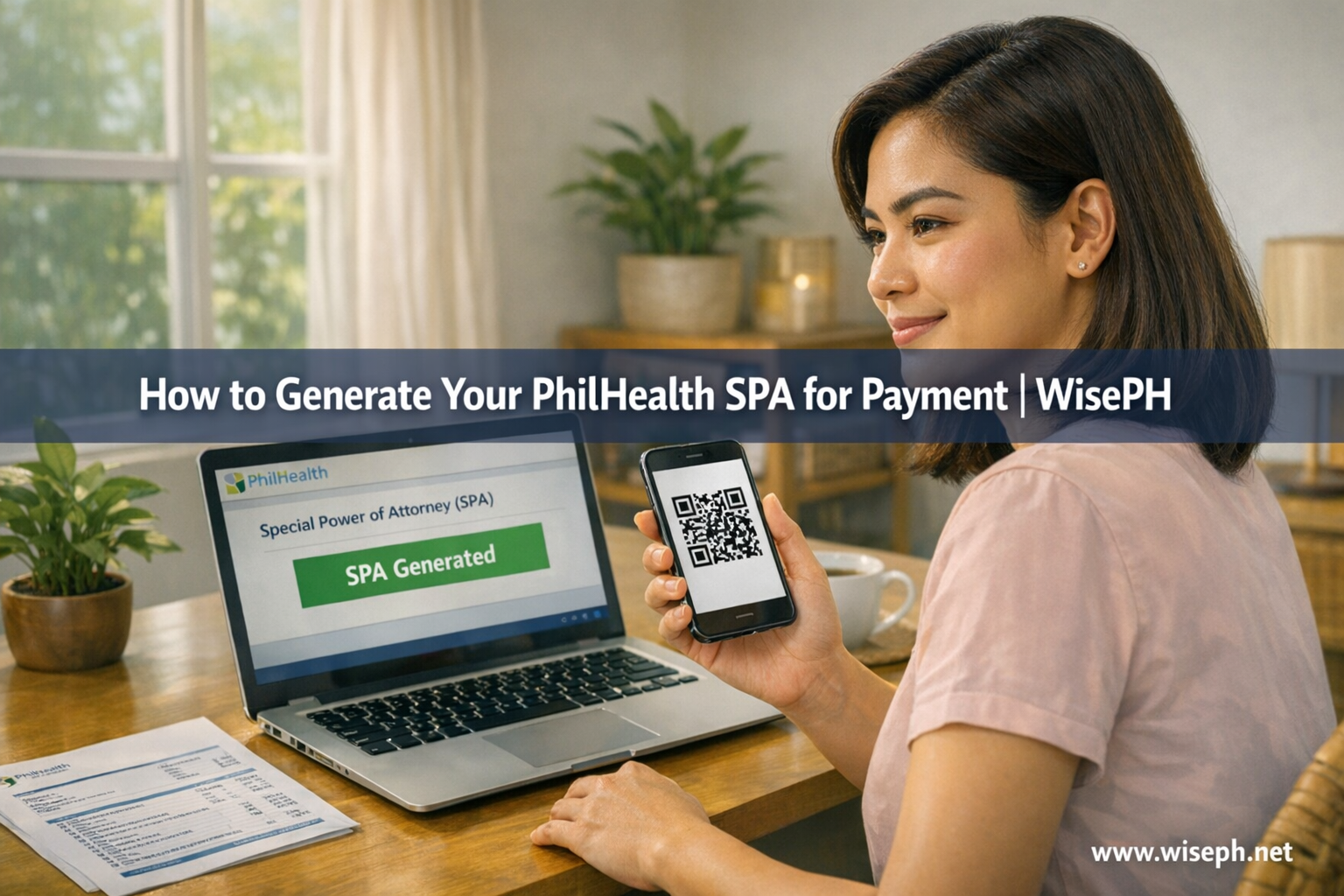
A PhilHealth SPA (Statement of Premium Account) is a QR-coded billing statement that shows exactly how much you owe, for which period, and links your payment directly to your record. It replaced the old “pay anywhere and pray” system starting April 2026 under Advisory 2026-0016.
| Detail | Info |
|---|---|
| Full name | Statement of Premium Account |
| Format | QR-coded digital statement (screenshot or PDF) |
| Generated at | spagen.philhealth.gov.ph or the Member Portal |
| Required since | April 1, 2026 |
| Who needs it | Self-employed, voluntary, and OFW members only |
The SPA contains your PIN, full name, membership type, the coverage months you’re paying for, your contribution amount, and a unique SPA reference number. As a result, SPA-linked payments post significantly faster than the old method because that reference number connects everything automatically.
Who needs to generate a PhilHealth SPA?
Self-paying members need the SPA. Employed members do not. If your employer deducts your premium from your salary, your company handles contributions through their own employer portal (EPRS). In that case, you never touch the SPA generator.
| Member type | Needs to generate SPA? |
|---|---|
| Employed (active) | No, employer handles it via EPRS |
| Self-employed / self-earning individual | Yes |
| Voluntary member | Yes |
| OFW (land-based overseas) | Yes |
| Recently resigned employee | Yes, but only after updating membership type first |
If you recently resigned and your membership type still shows “Employed” in the portal, the SPA option won’t appear at all. You have to update your status first. The full transition process is covered in the section below.
Check these three things before you generate
The SPA itself takes 30 seconds to generate. However, the three checks below are what prevent wrong amounts, blocked generators, and partial payments. Most guides skip this part entirely, and it’s exactly where people get stuck.
1. Membership type must be self-paying
If your profile still says “Employed,” the Payment Management section is hidden or grayed out. You cannot generate an SPA. Fix this at your nearest PhilHealth LHIO or through Member Services inside the Member Portal before doing anything else. I’ve seen OFW cousins and freelancers spend days convinced the portal was broken when the only issue was a membership tag left over from their old job.
2. Declared monthly income must be current
The SPA amount is calculated from the monthly income on file in your account. Specifically, if that figure is outdated, your SPA generates the wrong contribution amount. Underpayment means the month posts as a partial credit, not a full one. I underpaid once because I used an SPA generated from an old income bracket. The month showed as incomplete in my contribution history, and I had to generate a new SPA for the remaining balance plus a small interest charge. Updating your income first through the PMRF saves that hassle entirely.
3. No existing unpaid SPA for the same period
The portal will not generate a new SPA if you already have an active unpaid one for the same coverage period. So pay or cancel the existing one first. This is the most overlooked reason the generator appears to be broken. It is not broken; it is simply waiting for you to clear the pending record.
How to generate your PhilHealth SPA step by step
Once your three checks are clear, here’s the exact process. You have two official options.
Option A: via spagen.philhealth.gov.ph (faster, no full login needed)
- Go to spagen.philhealth.gov.ph
- Enter your 12-digit PhilHealth PIN and required member details
- Choose your payment period (monthly, quarterly, semi-annual, or annual; OFWs can sometimes select longer periods tied to their contract)
- Review the total amount and coverage months carefully before confirming
- Click Generate SPA
- Screenshot the QR code and save the SPA reference number
Option B: via the Member Portal (complete, full login required)
- Log in to your PhilHealth account at memberinquiry.philhealth.gov.ph/member
- Go to Payment Management
- Click Generate SPA
- Choose your payment period
- Review the amount and confirm
- Screenshot or download the SPA
Option A is the better choice when the Member Portal is slow or you simply need the SPA fast. Use Option B when you need to check your contribution history, verify your income declaration, or update your membership type at the same time. For help navigating the portal after login, see our guide on how to log in to your PhilHealth account.
One rule to follow regardless of which option you use: generate the SPA only when you’re ready to pay within the next one to two days. The SPA reference number is single-use for that exact amount and period. If you wait too long and the reference becomes stale, just generate a fresh one. No penalty applies; it takes 30 seconds.
SPA Generator vs Member Portal: which one to use
Both are official. Both produce a valid, accepted SPA. The difference is speed versus completeness. Pick the one that fits what you need right now.
Where and how to pay using your PhilHealth SPA
After generating, pay through one of the official channels below. Anything outside this list is either rejected outright or takes weeks to reconcile manually.
| Payment channel | How | Posting time |
|---|---|---|
| PhilHealth Member Portal (GCash/Maya/card) | Pay directly inside the portal right after generating | 2 to 5 working days |
| GCash or Maya Bills payment | Enter exact SPA reference number in the Bills section | 3 to 7 working days |
| PhilHealth LHIO or PRO cashier | Show QR code or SPA printout at the counter | 3 to 7 working days |
| Accredited Collecting Agent (ACA) | Show QR code, get official receipt | 3 to 7 working days |
Paying directly inside the portal right after generating is the fastest route because the SPA reference is already linked in the system. However, when using GCash or Maya separately, you must enter the exact SPA reference number in the Bills section. Using the old Billers menu without that reference causes manual reconciliation delays of two to four weeks.
OFW remittance partners abroad that haven’t updated their systems may still accept cash without an SPA. Avoid them. Payments made this way either get rejected or sit unreconciled for weeks, and you’ll end up at an LHIO anyway to sort it out.
What to do if you generated the wrong SPA
Underpayment is the more common problem. For example, if you paid less than the correct amount because your income bracket was outdated, the month posts as a partial credit. Fixing it is simple: generate a new SPA for the same period. Your remaining balance (including any applicable interest) is calculated automatically. Pay the difference and the month becomes fully credited.
By contrast, overpayment takes more effort. PhilHealth does not automatically refund excess payments or roll them forward. You need to file a refund or adjustment request at your local PhilHealth LHIO. Processing takes time, and some members simply ask the branch to apply the overpayment to a future contribution period. Either way, a personal visit is required.
The easiest way to avoid both situations is to confirm your declared income is current before generating, and review the total amount and coverage months on the SPA carefully before clicking pay.
How to confirm your payment posted
After paying, check your contribution history in the Member Portal or eGovPH app. A GCash or Maya receipt confirms the transaction processed on your end. It does not confirm that PhilHealth has posted it to your record. Those are two separate events.
Generally, SPA-linked payments post within two to five working days for portal payments and three to seven days for OTC and e-wallet payments. If nothing appears after seven working days, contact PhilHealth with your SPA reference number and payment receipt. Specifically, the reference number is what they need to trace it.
For a full guide on reading your contribution history and downloading your eSOA as official proof, see our post on how to check your PhilHealth contributions online.
Transitioning from employed to self-paying
If you recently resigned, your PhilHealth record still shows “Employed” and the SPA generator is completely invisible to you. The transition has a specific order, and skipping any step means the button stays hidden.
- Resign from employment and secure your last payslip or a certificate from HR noting your last contribution period
- Go to your nearest PhilHealth LHIO or use Member Services inside the Member Portal
- Submit a PhilHealth Membership Registration Form (PMRF) to change your membership type to Self-Earning Individual or Voluntary
- Declare your new monthly income on the same form
- Wait for the update to reflect in your portal profile (usually a few days to one week)
- Log in, confirm that Payment Management is now visible, then proceed to generate your SPA
Do not try to generate the SPA before step 5 is complete, because the option simply does not appear. Similarly, the same applies to returning OFWs who got a local job: update your membership type first or your new employer’s remittances may be treated as duplicates by the system.
If you’re new to PhilHealth entirely, read our guide on how to register for PhilHealth online before starting this process. For a full library of PhilHealth guides covering contributions, benefits, and claims, browse our PhilHealth section.
Frequently asked questions
What is a PhilHealth SPA and who needs it?
A PhilHealth SPA is a QR-coded billing statement required for all self-paying members to pay their premium since April 1, 2026. Self-employed, voluntary, and OFW members need it. Employed members do not because their employer handles contributions through the EPRS.
Where do I generate my PhilHealth SPA?
You can generate your SPA at spagen.philhealth.gov.ph (no full login needed, faster) or inside the PhilHealth Member Portal under Payment Management. Both are official and produce a valid SPA.
What happens if I already have an unpaid SPA?
The portal will not generate a new SPA if you already have an active unpaid one for the same period. Pay or cancel the existing SPA first. Only then will the system allow you to generate a new one.
How long does a PhilHealth SPA payment take to post?
Portal payments (GCash, Maya, card) after generating an SPA typically post in 2 to 5 working days. OTC and ACA counter payments using the SPA take 3 to 7 working days. Both are faster than the old method because the SPA reference links your payment automatically.
Can I generate an SPA if my membership type still says Employed?
No. The Payment Management section is hidden when your type is Employed. Update your membership to Self-Earning Individual, Voluntary, or OFW through your nearest PhilHealth LHIO first. The Generate SPA option only appears after that update reflects in your profile.